
1 Introduction
The BWA (Balboa Water App) allows you to control your hot tub directly from your smartphone or tablet. Available for iOS and Android, it lets you manage temperature, pumps, lights and other functions wherever you are.
The app offers three connection modes:
- Initial Setup - Direct connection to the WiFi module (near the hot tub)
- Local Connect - Connection through your home WiFi network
- Cloud Connect - Remote connection from anywhere via internet (3G/4G/WiFi)
1.1 Download the App
The BWA app is available for free:
- iOS: App Store - search for "BWA" or "Balboa Water"
- Android: Google Play Store - search for "BWA" or "Balboa Water"
2 WiFi Router Requirements
Before proceeding with configuration, verify that your home router meets the following requirements:
| Requirement | Specification |
|---|---|
| Frequency | 2.4 GHz (5 GHz networks are not supported) |
| WiFi Standard | 802.11 b/g/n |
| Security | Open, WEP, WPA or WPA2 |
| Channels | 1-11 |
| Signal Strength | -50 dBm or better (recommended) |
WARNING: The following network types are NOT supported:
- 5 GHz networks
- Mesh routers
- Guest networks with login pages (captive portal)
- Enterprise networks with 802.1X, RADIUS or certificate authentication
3 Step: Initial Setup
Initial Setup establishes the first direct connection between your smartphone and the hot tub WiFi module.
3.1 Prerequisites
- Verify that the WiFi module is connected to the Balboa BP control box
- The hot tub must be powered on and functioning
- Position yourself near the hot tub
3.2 Procedure
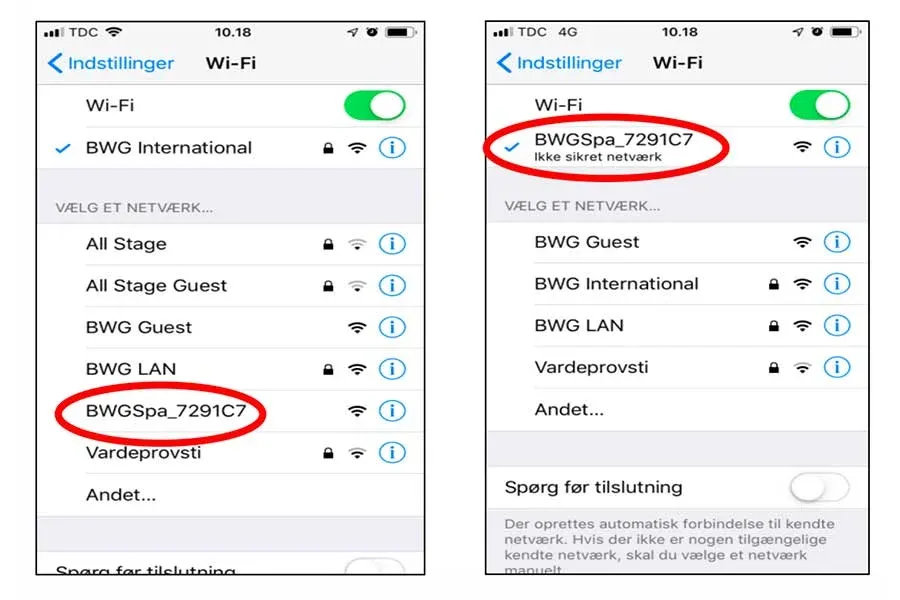
- Open your device WiFi Settings (not the BWA app)
- Look for the network BWGSpa_xxxxxx (where xxxxxx is a unique code)
- Connect to this network (no password required)
- Open the BWA app
- Press Menu and select INITIAL SETUP
- Follow the on-screen instructions
If the connection is successful, the BWGSpa_xxxxxx network name will appear in the top right of the app.
3.3 Verify the Connection
To verify that the connection works correctly:
- Try turning the pumps on and off from the app
- Verify that the displayed temperature matches the display
- Test the lights (if present)
4 Step: Local Connect
Local Connect allows you to control the hot tub when connected to your home WiFi network, without needing to be in close proximity.
4.1 Procedure
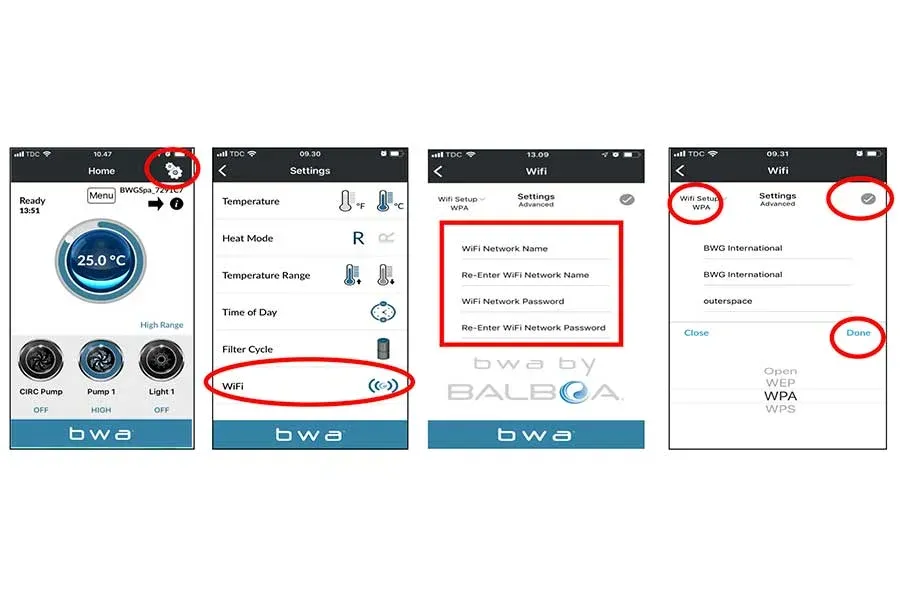
- While connected via Initial Setup, press the Settings icon (gear)
- Select WiFi
- Enter your home WiFi Network Name
- Re-enter the name to confirm
- Enter your WiFi network Password
- Re-enter the password to confirm
- Select the network security type (Open/WEP/WPA/WPS)
- Press the checkmark and then Done
NOTE: Network name and password are case-sensitive.
4.2 Completing the Configuration
- Press OK when prompted
- Wait 1-2 minutes for the connection to complete
- Verify that your device has reconnected to your home WiFi
- The BWGSpa_xxxxxx network will no longer be visible
- Open the BWA app and press LOCAL CONNECT
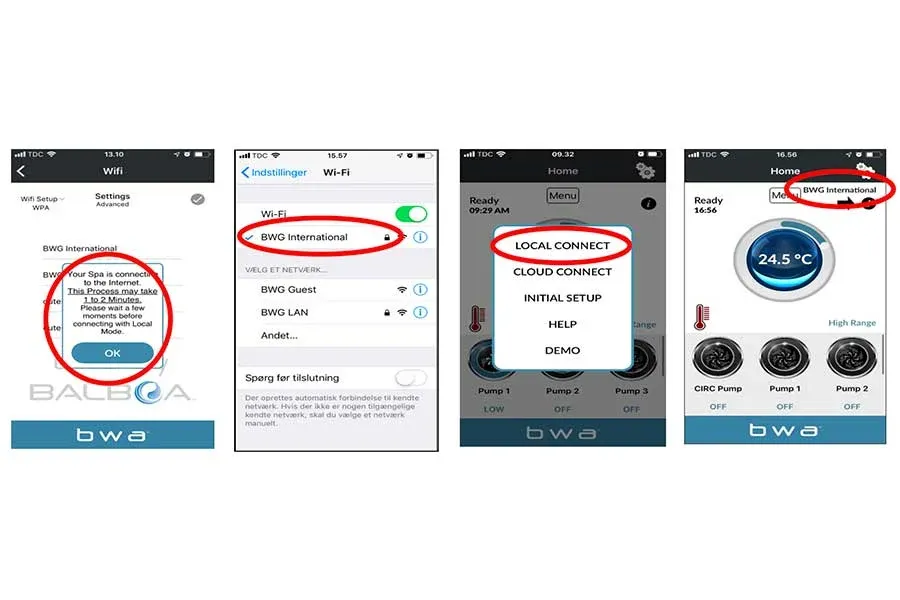
If the connection is successful, your home WiFi network name will appear in the top right of the app.
5 Step: Cloud Connect (Remote Connection)
Cloud Connect allows you to control your hot tub from anywhere in the world, using mobile data (3G/4G) or any WiFi network.
5.1 Creating an Account
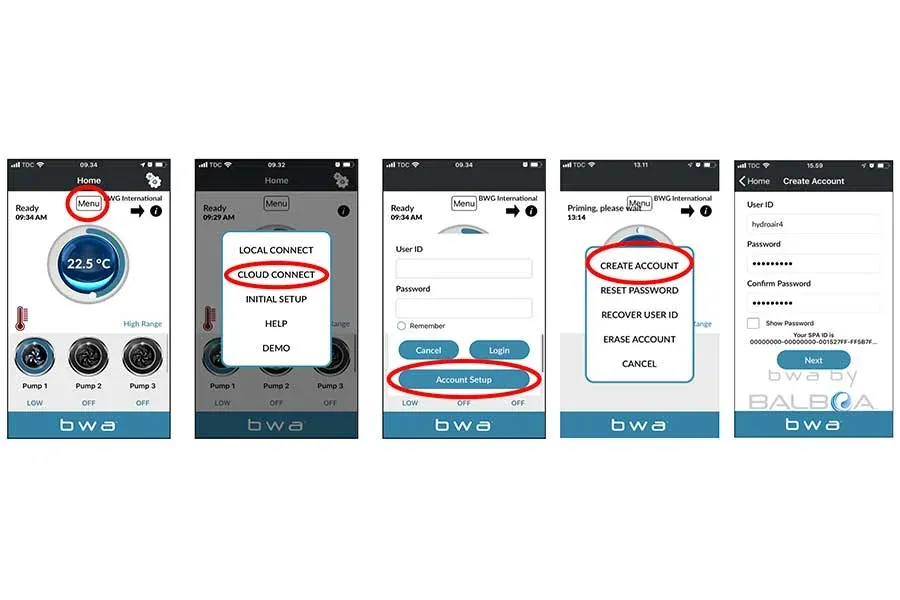
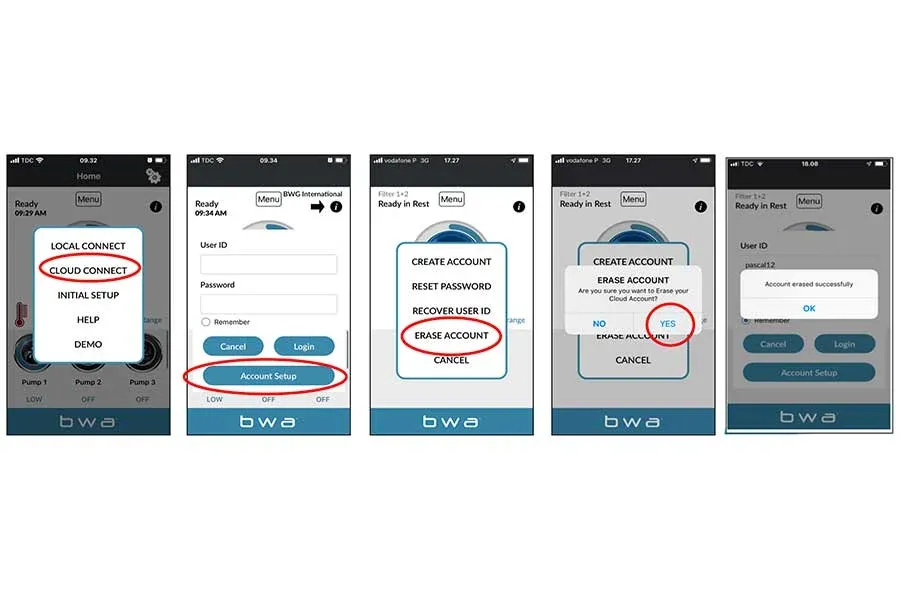
- While connected via Local Connect, press Menu
- Select CLOUD CONNECT
- Press Account Setup
- Select CREATE ACCOUNT
- Choose a User ID (username)
- Choose a Password
- Confirm the password
- Press Next
5.2 Security Questions
Answer the 5 security questions. These will be used to recover your account if you forget your password.
- What is your favorite outdoor activity?
- Who is your favorite actor?
- Where is your favorite vacation?
- Who is your favorite music singer?
- (fifth question varies)
Press Create Account to complete registration.
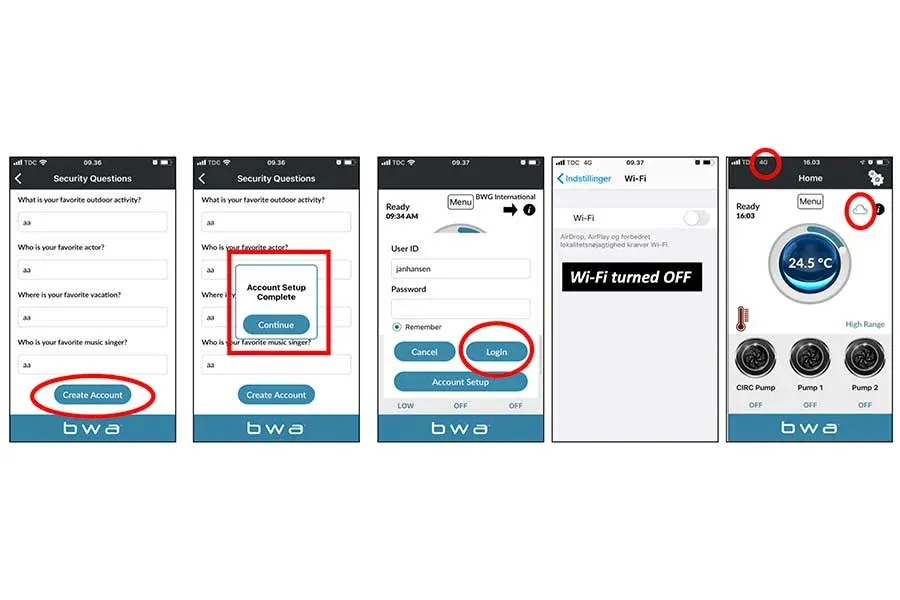
5.3 Cloud Access
- Enter the User ID and Password you created
- Select Remember to save your credentials
- Press Login
If the connection is successful, a cloud icon will appear in the top right of the app.
5.4 Verify Cloud Connect
To verify that Cloud Connect works:
- Turn off WiFi on your device
- Use only mobile data connection (3G/4G)
- Open the BWA app and press CLOUD CONNECT
- Log in with the credentials you created
- Verify that you can control the hot tub
6 Account Management
6.1 Reset Password
If you forget your password:
- Press CLOUD CONNECT
- Press Account Setup
- Select RESET PASSWORD
- Follow the instructions and answer the security questions
6.2 Recover User ID
If you forget your User ID:
- Press CLOUD CONNECT
- Press Account Setup
- Select RECOVER USER ID
- Follow the instructions
6.3 Delete Account
To delete your cloud account:
- Press CLOUD CONNECT
- Press Account Setup
- Select ERASE ACCOUNT
- Confirm by pressing YES
NOTE: Account deletion is irreversible. You will need to create a new account to use Cloud Connect.
7 WiFi Module Reset
If you experience persistent connection issues, you may need to reset the WiFi module.
7.1 Information for Reset
To request a module reset, provide support with:
- The SSID code (BWGSpa_xxxxxx) shown on the module label
- The serial number (S/N) shown on the module label
This information is found on the adhesive label on the WiFi module, accessible by opening the hot tub technical compartment.
8 Troubleshooting
8.1 The BWGSpa_xxxxxx network does not appear
- Verify that the WiFi module is correctly connected to the control box
- Verify that the hot tub is powered on
- Move closer to the hot tub
- Try turning the hot tub off and on again
8.2 Error during Local Connect
- Verify that the network name and password are correct (watch for case sensitivity)
- Verify that your router uses the 2.4 GHz band
- Verify that your router is not a mesh system
- Check that the WiFi signal is strong enough at the hot tub location
8.3 Cloud Connect does not work
- Verify that Local Connect works correctly
- Verify your login credentials
- Check your device internet connection
- Try logging out and back in
8.4 The app does not respond to commands
- Wait a few seconds, there may be network latency
- Verify the connection (Initial Setup/Local/Cloud)
- Close and reopen the app
- Verify that the hot tub is powered on and functioning
9 Built-in Help
The BWA app includes a help section with video tutorials. To access it:
- Press Menu
- Select HELP
- Choose the desired topic to view the corresponding video
Available videos:
- Overview
- Introduction
- Demo Mode
- Initial Setup / Direct Mode
- Local Mode
- Account Setup & Cloud Connect
- Reset Password
- Lost Login ID
- Erase Account